Putting your own design on a game garment sounds simple, and the tools make it quick, but the difference between a design that looks printed and one that looks pasted on comes down to a handful of choices. These tips apply to Forza Horizon 6 and GTA V clothing alike, and to any tool that places images on a 3D garment.
Start with the right image
- Resolution. Aim for at least 1024 pixels on the long side for a chest or back print. A small logo can be 512. Anything smaller turns soft and blurry in close-up shots.
- Format. Use PNG for logos, text and anything with sharp edges or transparency. JPG is fine for photos but adds blocky artefacts around hard edges.
- Transparency. A logo should have a transparent background, so the garment's fabric shows around it. If you only have a version on white, a background-removal option can take out the white, which works best when the logo has a clean edge and no white inside it.
- Your own work. Use artwork you made or have the right to use. Brand logos and other people's art are fine on your own copy of the game, but not for designs you share or sell.
Placement: think like a printer
Real garments are printed in a few standard spots, and designs placed there look right instantly:
| Left chest | A small logo, roughly a hand's width, centred over the heart. |
|---|---|
| Full front | Centred, starting a little below the collar, no wider than the space between the armpits. |
| Full back | The biggest area. Start below the collar seam and leave a margin at the sides. |
| Sleeve | A vertical strip or small mark, along the outside of the arm. |
| Hat front | Centred on the front panel, kept clear of the brim seam. |
Avoid putting important detail across seams, the underarm or the hood opening. A garment's texture is cut into flat pieces, and the edges where pieces meet stretch or split an image. Check the front, back and both sides after you place anything near an edge.
Colour on dark and light garments
A design changes with the garment colour beneath it. Dark ink disappears on a black hoodie; pale yellow vanishes on white. A few habits help:
- Give text an outline or a shadow in a contrasting colour, so it reads on any base.
- Use hue, saturation and brightness adjustments to fit a logo to the garment instead of changing the logo file.
- Games light clothing with their own lighting. Bright neon colours can glow more than you expect at night; slightly muted colours often look more real.
Always check the in-game view
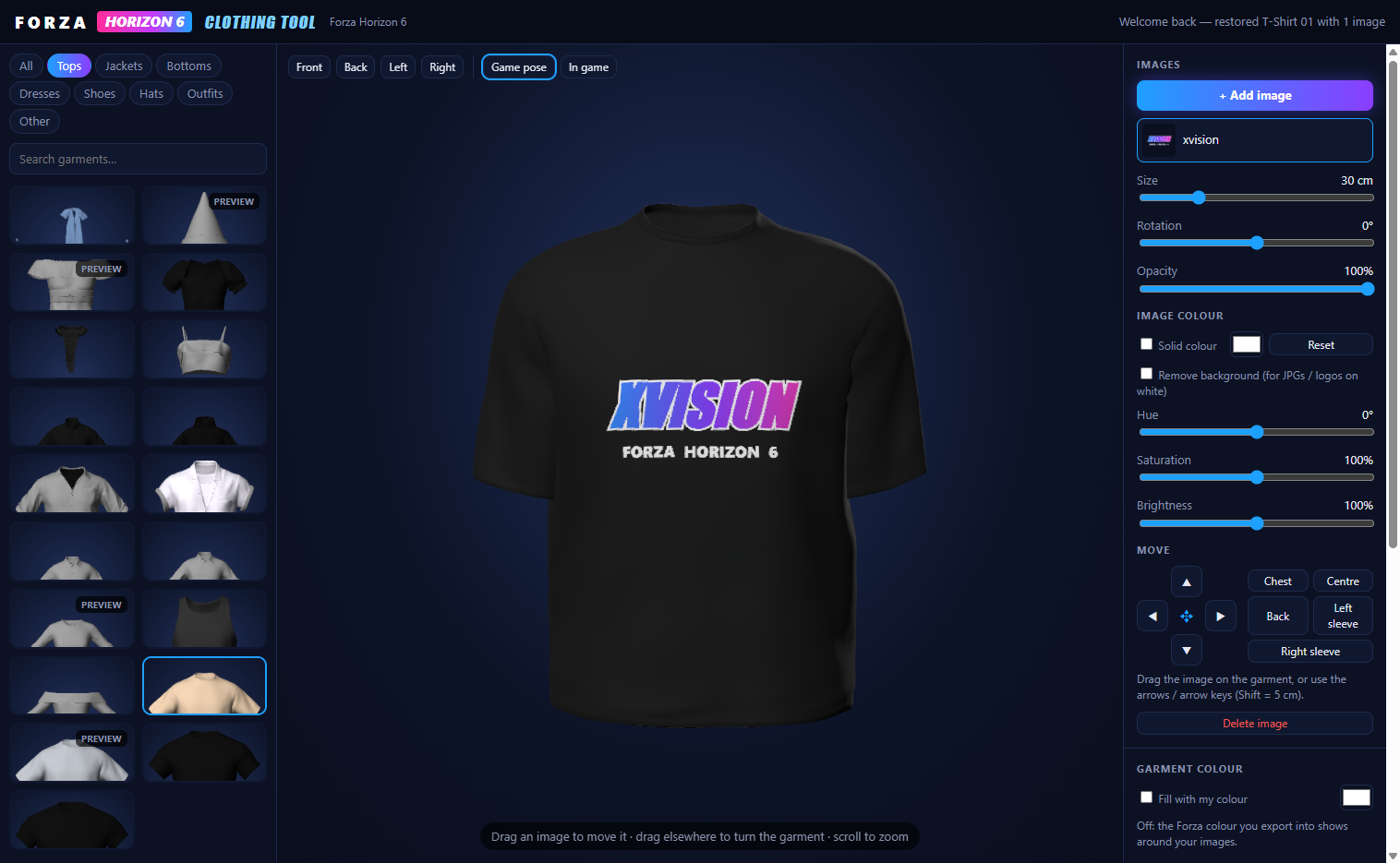
A flat or T-pose view shows the garment as it's laid out, which is good for placing. It isn't how it looks when worn. Switch to a pose that shows the garment on a body to see how the fabric folds a print, then to a true in-game preview before you export. Forza Clothing has both a Game pose and an In game view for this reason: the second shows exactly what Forza will draw.
Colour slots and keeping several designs
Forza's garments come in several colour options. Exporting a design into one colour slot replaces that option, and you pick the matching colour in the game's wardrobe to wear it. Put different designs in different slots to keep several on the same garment. In GTA V, designs saved as add-on clothing are kept as extra texture variations, so every colour you save stays available.
Going back to stock
Keep your source images in a folder you won't lose, so you can redo a design after a game update. If you want the stock look back, use the restore option in your tool rather than deleting files by hand; Forza Clothing has a one-click Restore stock that puts every garment back the way the game shipped it.