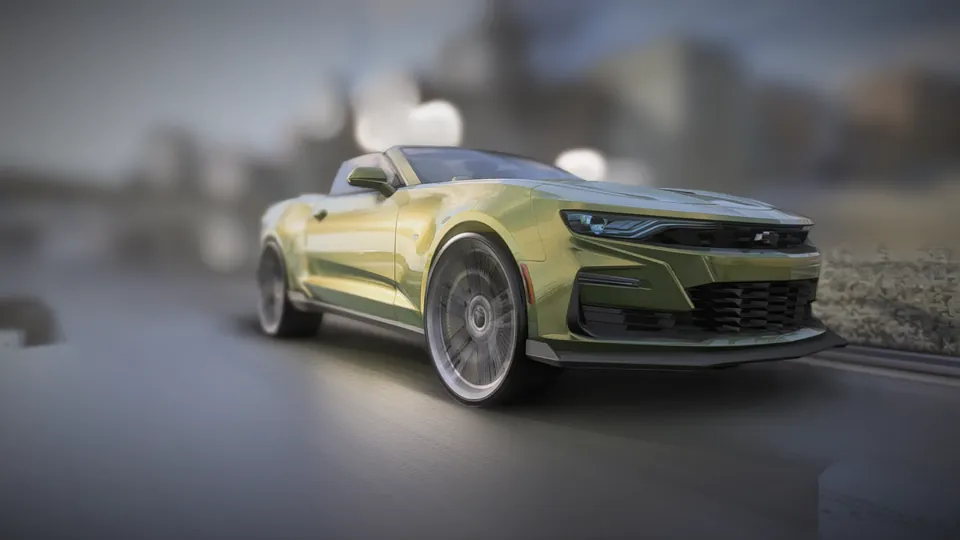
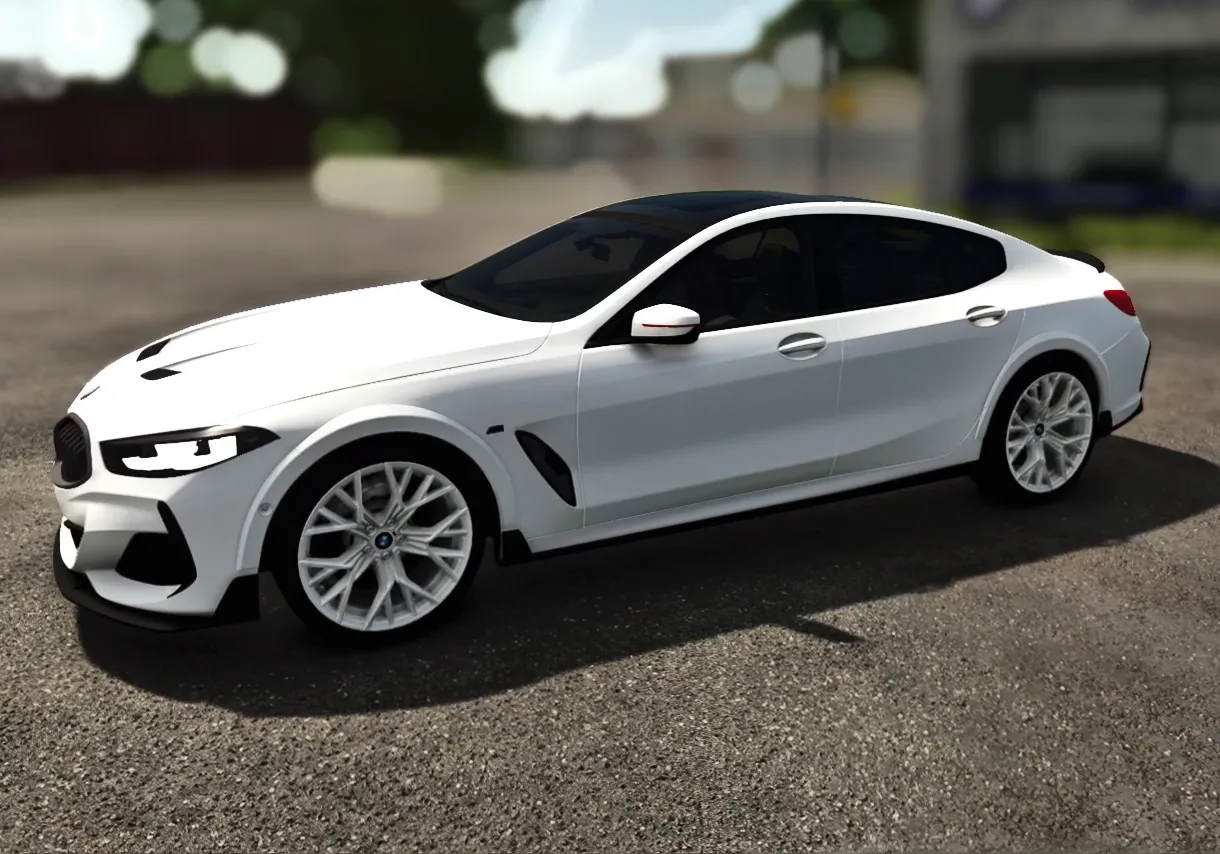
Farming Simulator 25 has one of the tidiest mod systems around: every mod is a single zip in one folder, and you choose which mods each savegame uses. Cars fit right in. A converted GTA V or FiveM car is bought in the shop, parked on your farm and driven between fields like any pickup. Here's how to install one, find it, use it, and fix it when it doesn't show up.
The mods folder
FS25 reads mods from Documents\My Games\FarmingSimulator2025\mods. The folder is created the first time you start the game. Each mod is one .zip file placed directly in it.
Three rules catch almost everyone at least once:
- Don't unzip it. The game reads the zip itself.
- Don't rename it. The file name becomes the mod's internal name. It may only use letters, numbers and underscores, and changing it breaks any save that already uses the mod.
- No zip inside a zip. Some downloads wrap the real mod in a second archive with a readme. Take the inner zip out and put that in
mods.
Turning a mod on for a save
Mods aren't switched on globally. When you start a new career, or load an existing save, the game shows a mod selection screen. Tick the car there and continue. A save only loads the mods ticked for it, so you can keep a clean save and a modded one side by side.
When you add a mod to an existing save, load it from the main menu and the selection screen will list the new mod, unticked. Tick it, then load.
Buying the car
Open the shop and look in the Cars category. Mod vehicles appear alongside the stock ones, usually under their own brand. Pick a colour in the configuration screen, buy it, and it's delivered to your farm's shop spot. Many conversions let you choose the car's original GTA colours as well as any Farming Sim colour.
Doors, hood, trunk and roof
FS25 gives vehicles a set of action keys you can assign in the Controls menu. On our conversions the defaults are:
| Ctrl + 5 | Open and close the doors |
|---|---|
| Ctrl + 6 | Open and close the hood |
| Ctrl + 8 | Raise and lower a convertible roof |
| Ctrl + 9 | Open and close the trunk |
Other mods may use different keys. If a key does nothing, check Settings → Controls and search for the action.
Reading log.txt
When a mod doesn't appear or behaves oddly, the game's log almost always says why. It lives at Documents\My Games\FarmingSimulator2025\log.txt and is rewritten each time you start the game. Open it after the problem, search for the mod's zip name, and read the lines that start with Error or Warning.
- Invalid mod name: the zip was renamed, or the name has spaces or symbols. Restore the original name.
- Failed to open xml or file not found: the zip is incomplete or was packed in the wrong folder structure.
- Mod not loaded, missing dependency: it needs another mod that isn't installed or ticked for this save.
Quick fixes
| Not in the mod list | Wrong folder, unpacked, renamed, or a zip inside a zip. Put the single original zip directly in mods. |
|---|---|
| In the list but not in the shop | It isn't ticked for this save. Load the save from the main menu and tick it. |
| Car disappeared from the farm | The mod was removed or renamed while the save still owned the car. Put the original zip back. |
| Low frame rate near the car | Very detailed GTA models are heavy. Pick a model with less detail, or lower the game's object detail setting. |
Removing a car mod
Sell the car in game first and save. Then close the game and take the zip out of the mods folder, or simply untick it the next time you load that save. Removing a mod the save still uses leaves the vehicle out on the next load, so selling it first keeps your farm's money and garage tidy.