American Truck Simulator is built around trucks, but its mod system handles any vehicle you can buy at a dealer, and that includes cars. A converted car is packed as a single .scs file, sits in your mod folder, and shows up at the dealer like any other vehicle once you switch it on. This guide covers the whole path from file to driving, and how to remove a mod without trouble.
The mod folder
ATS keeps its mods outside the game's install folder, in your Documents: Documents\American Truck Simulator\mod. If the mod folder doesn't exist yet, start the game once and quit, or create it yourself. You never need to touch the files in the Steam install folder to use mods, which is why a broken mod can't damage the game itself.
A mod is either a .scs file (a packed archive) or a .zip. Leave it packed: the game reads it as it is, and unpacking it into loose folders stops it loading.
Turning a mod on in the Mod Manager
- Start ATS. On the profile screen, click Mod Manager.
- Find the car in the list of available mods on the left.
- Double-click it, or drag it, into the active list on the right.
- Click Confirm changes, then load your profile.
Mods are switched on per profile, so a car you enable on one profile won't appear on another. The order in the active list matters when two mods change the same thing: mods higher in the list win. A car mod that adds its own vehicle doesn't usually conflict with anything, so its position rarely matters.
Buying and driving the car
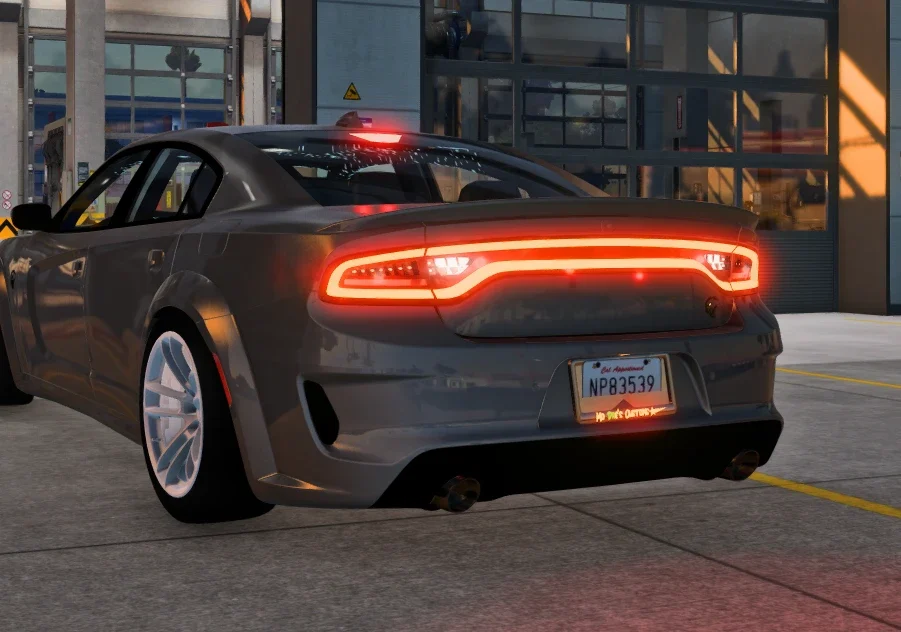
A converted car is sold at the dealer under its own brand. Open the Purchase menu, pick the brand, and choose the car. You can fit it out in the configurator like a truck: paint, and accessories if the car has any. On our conversions, the optional parts from the GTA car, such as bull bars, roof racks or light bars, become accessories you can add or remove.
Once bought, assign it to your garage or simply drive it. Cars can't hook a trailer, so they're for driving, not hauling. Freight loads for car mods are a separate feature that some mods add.
If the game asks about mods on startup
When a mod uses features from the game's plugin interface, ATS shows a message asking whether to allow "advanced SDK features". Car mods on their own don't need this. If you see it with a car, it's coming from another mod or plugin you have installed.
Removing a mod safely
This is the one step people get wrong. If you disable a mod while your profile still owns that vehicle, the game has nothing to load for it. Depending on the vehicle, ATS removes it from your garage on the next load or refuses to load the save. Do it in this order:
- Sell the car at a dealer, or at least switch to a different vehicle.
- Save the game and quit to the profile screen.
- Disable the mod in the Mod Manager, or delete the
.scsfrom the mod folder with the game closed.
If a save does refuse to load, re-enable the mod, sell the car, and then remove it.
Reading game.log.txt
When a mod misbehaves, ATS usually tells you why in Documents\American Truck Simulator\game.log.txt. The file is rewritten every time the game starts, so check it right after the problem. Search it for Error or Warning and the mod's file name. The lines that matter most:
- Missing file or failed to load: the mod refers to a file it doesn't contain, often because a download was cut short.
- Unknown unit: the mod uses something from another mod that isn't enabled, or from a newer game version.
- Mod is incompatible with game version: the mod was built for an older version. Many still work; the message is a warning, not a block.
Quick fixes
| Not in the Mod Manager | The file is in the wrong folder, still inside a second zip, or unpacked. Put the single .scs directly in mod. |
|---|---|
| Not at the dealer | The mod isn't active on this profile, or you're looking under the wrong brand. Use the dealer's brand list. |
| Invisible or floating car | A model file failed to load. Check game.log.txt and reinstall the mod. |
| Game crashes on load | Disable recently added mods one at a time to find the one responsible. |